
Restaurant QR menu guide
How to Create a QR Code for Your Restaurant Menu
Start with a public link to your menu. Turn that link into a QR code, then scan a printed copy at the table before you order a batch of stickers.
2. Turn your menu link into a QR code
Copy the full menu URL into a URL-to-QR generator. A static QR code stores that address directly. Choose one if you can keep the menu at the same address. A free tool such as Adobe Express’s restaurant QR code generator can turn your link into a downloadable image.
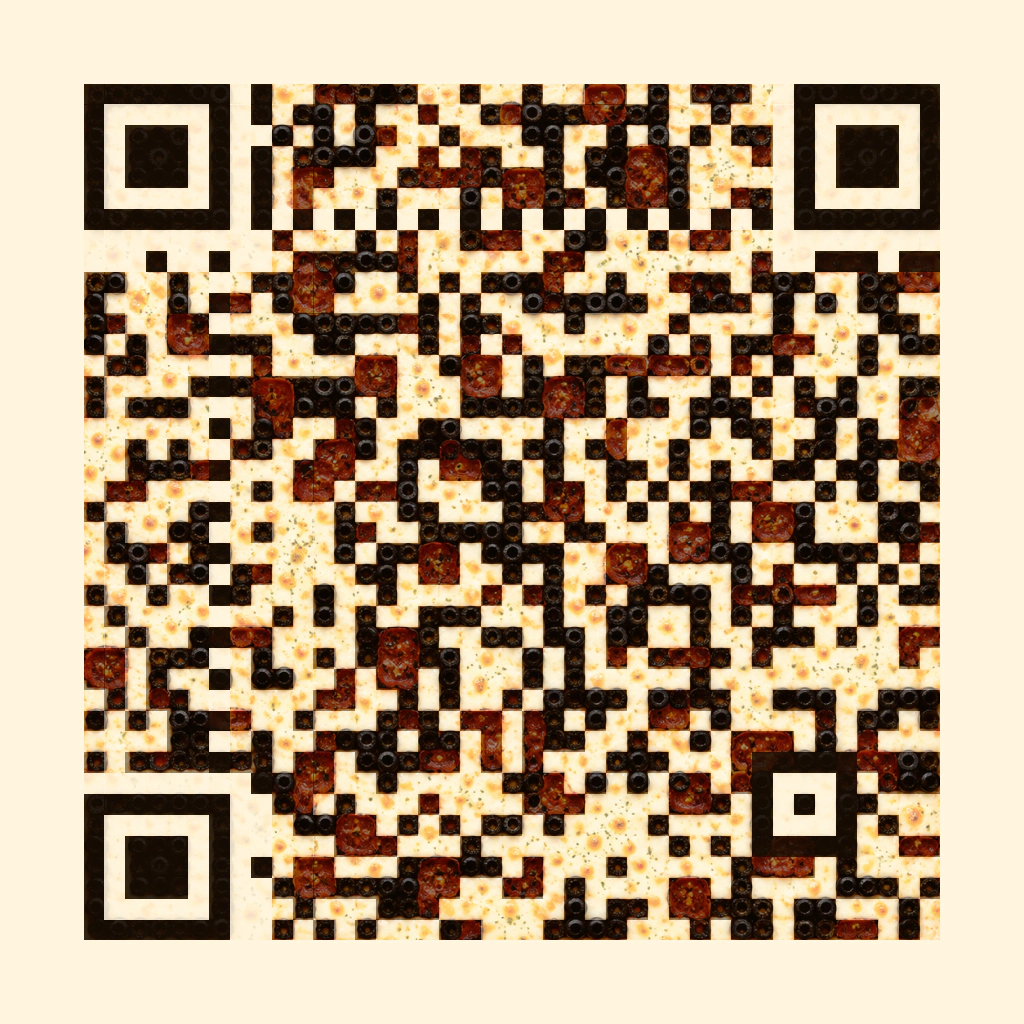
Save an SVG if your design software or printer accepts it. A PNG also works if it stays sharp at the final print size. Keep the code square, use a dark code on a light background, and leave a clear margin around it. Standard QR codes need a margin at least four small squares wide on every side. Keep text and decoration outside that area. DENSO WAVE’s QR code layout guidance
3. Test a sticker at the table before you print a batch
Print one copy at the intended size on the material you plan to use. Add a label such as Scan for menu and, if you have a short menu address, print it underneath as a backup.
- Scan it with an iPhone and an Android phone from where a guest would sit or stand.
- Try it in your usual service lighting. Check for shadows and glare from overhead lights.
- Open the menu on mobile data. Check that it loads without a sign-in and that the prices are readable.
If it’s slow to scan, try a larger code or a matte finish. Keep a printed menu handy for guests who prefer one.
Common questions
Can I make a QR code for my menu for free?
Yes. If your menu already has a public link, a free static generator can turn it into a QR code. The menu still needs to stay available at that link.
Can I use one code for food and drinks?
Yes. Point the code to a page that shows both menus or offers two clear links. Check that guests can reach either one without going back to the restaurant homepage.